Search and rename
Desktop Call Recorder can search the text of every transcript as well as the names of your recordings. You can also give each recording the real name of the person you spoke to, and the files on disk are renamed to match.
Search your recordings
The box above the recordings list says "Search recordings and transcripts". Type a word and the list shows only the recordings that contain it, either in the recording's name or in what was said. The number at the right of the box is how many recordings were found. The date and messenger filters next to it still apply, so you can look for a word in last week's Zoom calls only.
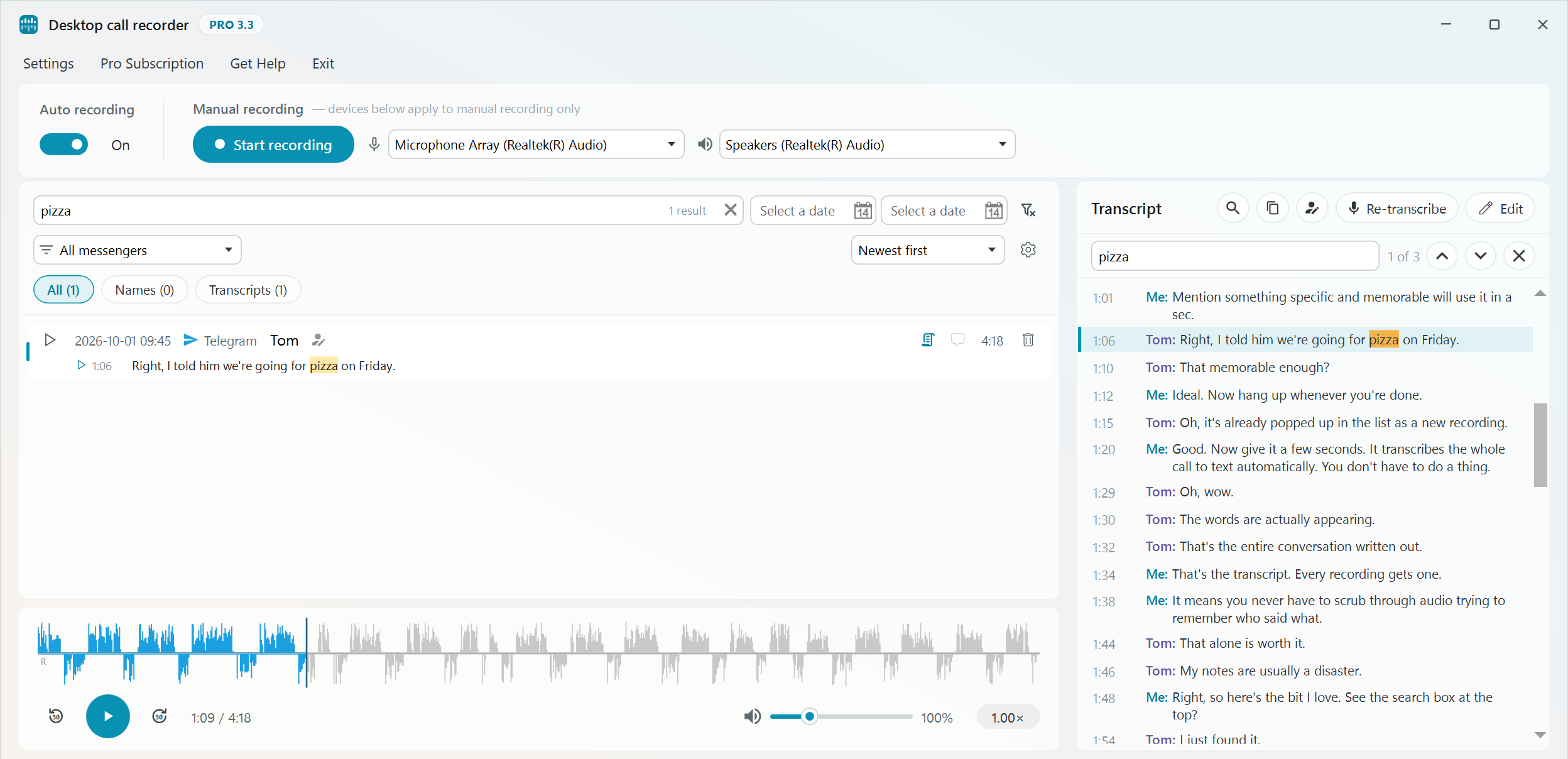
Under the box are three buttons with counts: All, Names and Transcripts. All is selected at first. Names keeps only the recordings where the word is in the contact name, the messenger, the file name or your note. Transcripts keeps only the ones where somebody said it. You can switch between them without typing the word again.
When the word was said in a call, the first line it appears in is shown under the recording, with its time. Click that line and the recording starts playing from it, with the transcript open at the same place and every match highlighted. If the word is only in your note, the note is shown there instead.
Search ignores upper and lower case and works in any language, Cyrillic included. It looks inside one transcript line at a time, so a phrase split across two lines is not found. A recording you transcribed a minute ago, or a transcript you just corrected, is searched in its current form.
Search works the same in the free version and in Pro. The free version transcribes the first 3 minutes of each call, so only those 3 minutes can be found.
Find in one transcript
To find every place a word appears in the transcript you are reading, press the magnifier button at the top of the transcript panel and type the word. Every match is highlighted, and the counter shows where you are, for example "1 of 3". The up and down buttons, or Shift+Enter and Enter, move to the previous or next match and scroll it into view. The cross or Esc closes the find bar.
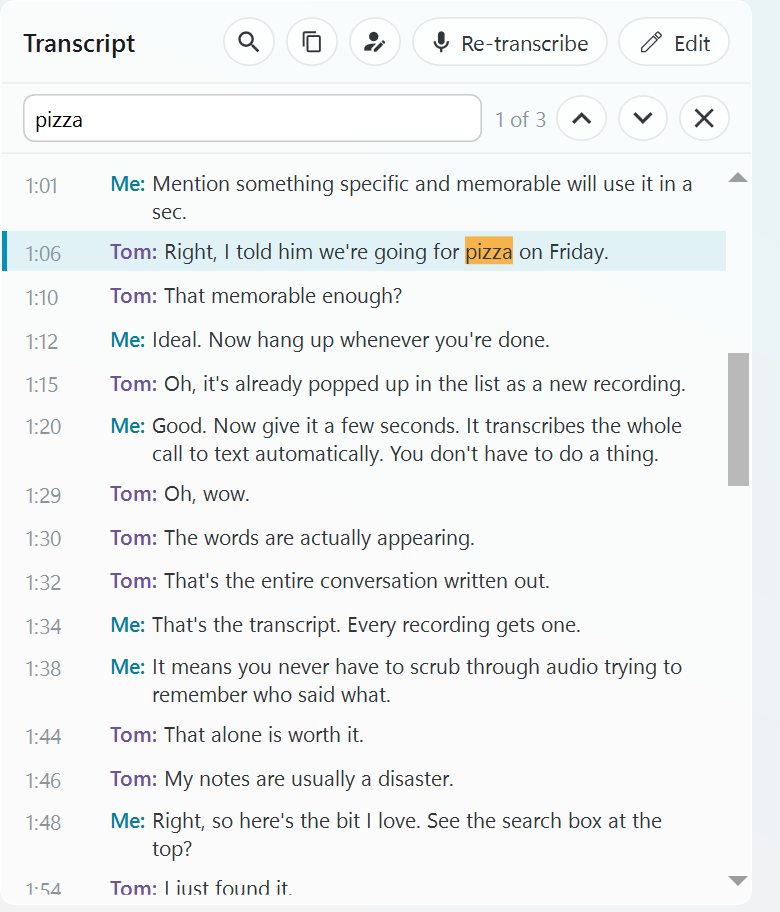
If you searched from the box above the list, the find bar opens by itself with the same word whenever you select a recording that has a transcript. Clearing the search box closes it again.
You can still click any line to play from there while the find bar is open. Pressing Edit closes it.
Copy a transcript
The copy button, next to the magnifier, puts the whole transcript on the clipboard. Each line has its time and the speaker's name, the same as in the .txt file saved next to the recording, so you can paste it into an email, a document or a ticket. Copy works in the free version too.
Rename a contact
When Desktop Call Recorder does not know who you spoke to, the recording is listed under the app's name, for example "Telegram recording". To fix that, click the pencil next to the name in the recordings list, or the pencil button at the top of the transcript panel. Type the name, then press Save or Enter. The cross or Esc cancels.

A new name changes more than the list:
- The recording file and its .txt and .srt transcript files in your recordings folder get the new name, for example
2026_07_09 16-45-00 Marcus _ Microsoft Teams recording.mp3. If you keep copies of these files elsewhere or use them in scripts, expect the new names. - The contact's name in the transcript changes to the new one. Your own label, "Me" or the name you set in Transcription settings, stays as it is, and so does any speaker name you edited by hand.
- The title saved inside the MP3 file changes too, so other players show the new name.
You can rename a recording while it is playing. Hover over a name in the list to see where its file is on disk.