Manual
How to install Desktop Call Recorder
Three steps to download Desktop Call Recorder, install it and record your first call on Windows. It takes a couple of minutes.
System requirements:Windows 10 (64-bit) or Windows 11
1
Download the installer
Press the button below to download the latest version of Desktop Call Recorder.
2
Run the installer
Find the downloaded file Recorder3Setup.exe, usually in your Downloads folder, and double-click it to start the installation.
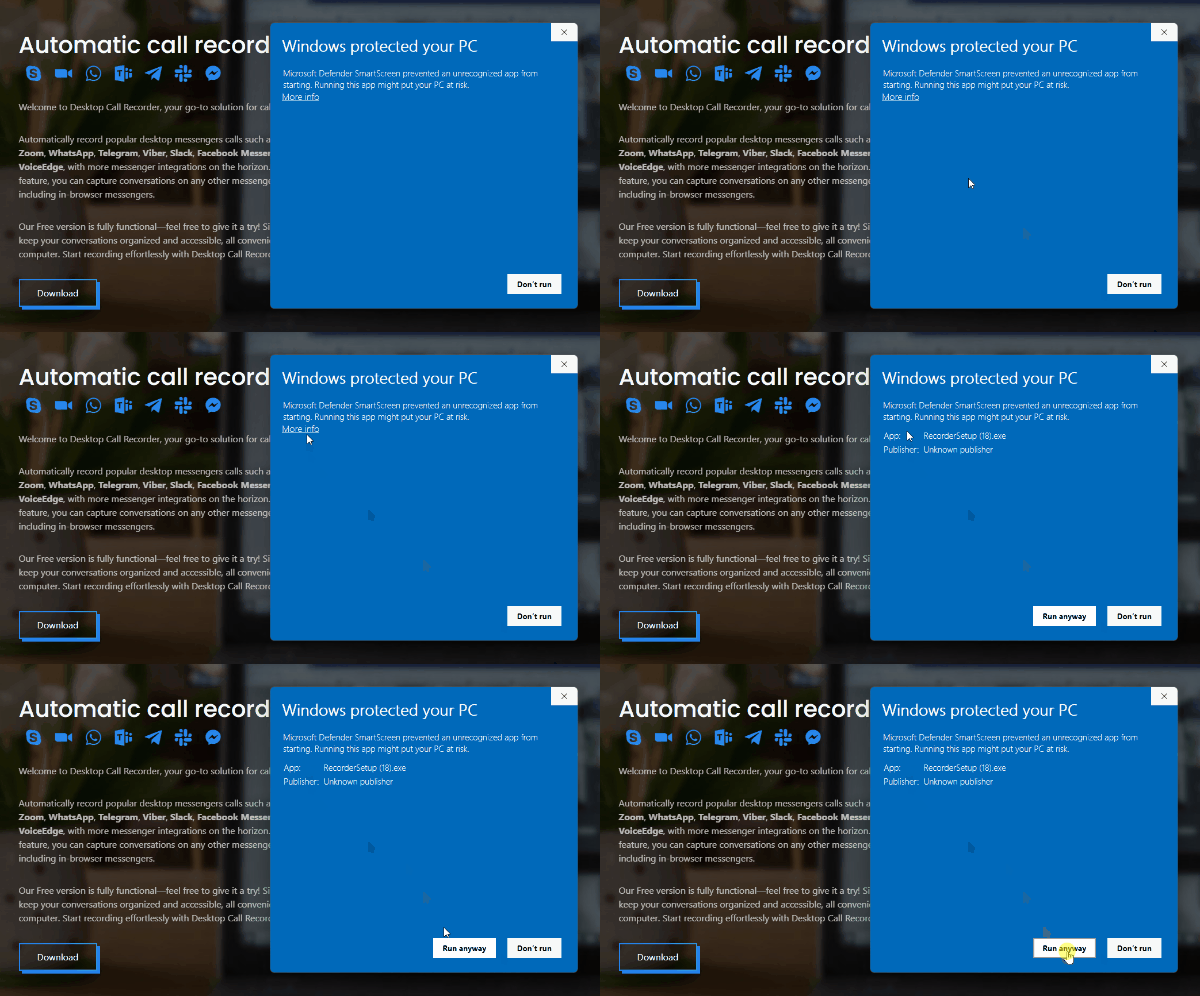
Windows Defender SmartScreen warning
Windows can show a security warning for a newly published app. The warning is a false positive. Click "More info", then click "Run anyway".
Windows can show a security warning for a newly published app. The warning is a false positive. Click "More info", then click "Run anyway".
3
Start recording
Desktop Call Recorder opens by itself when the installation finishes. There is nothing else to set up.
- It finds your microphone and speakers when it first starts.
- Its icon appears in the system tray.
- Auto recording is on, so a call is recorded as soon as it starts.
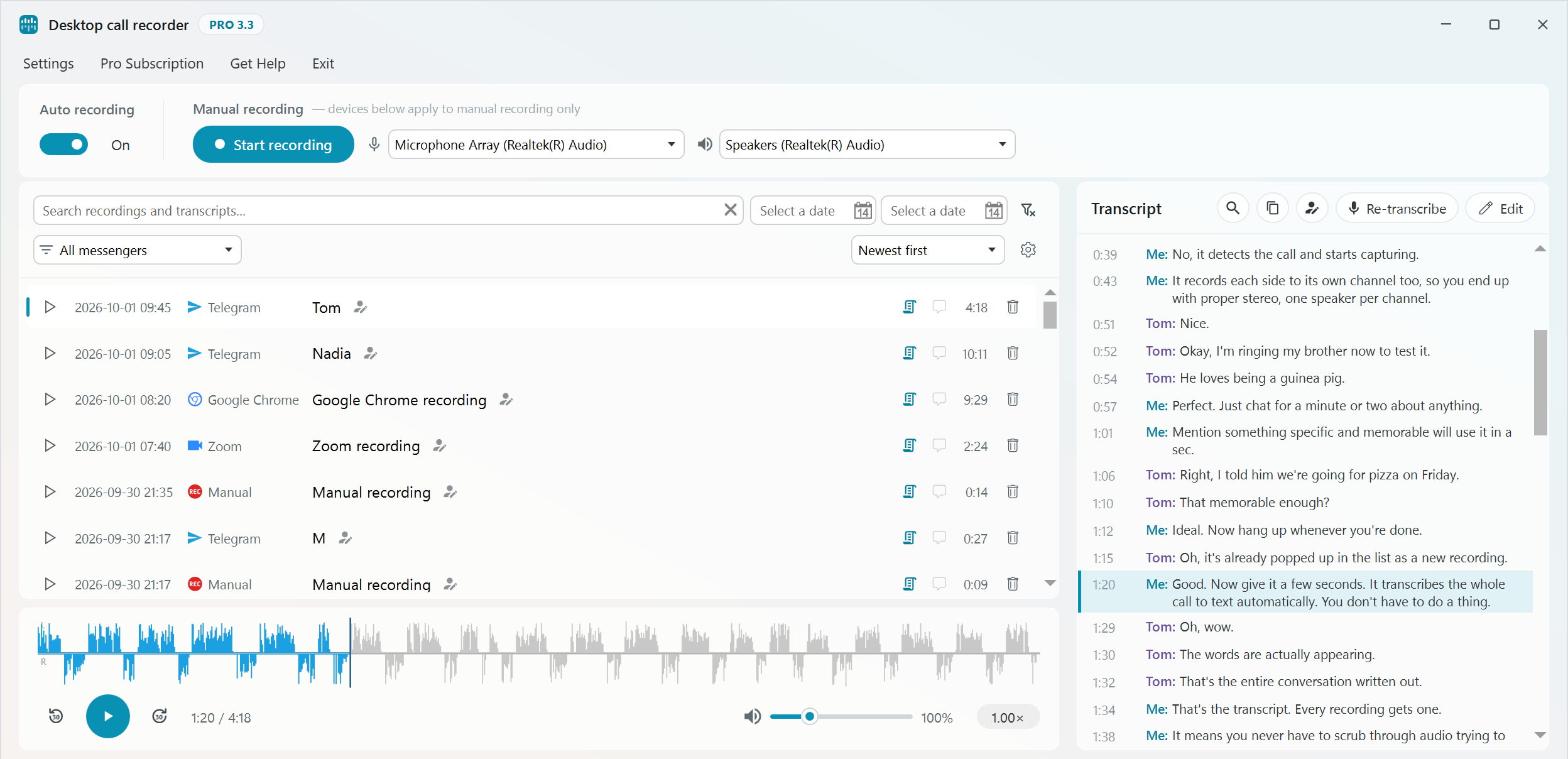
You are ready to recordMake a call in Zoom, Teams, WhatsApp or another supported app and Desktop Call Recorder records it.
Need help?
If something goes wrong during the installation, write to us and we will help.
Email: team@desktopcallrecorder.com
Also see: Installing with a script? Activate with the registry